
It’s the night before the movers arrive. The robot vacuum is still docked in the hallway, the thermostat is on the wall, and three smart speakers are still signed in to your account. Boxing them up is the easy part. Doing it in the right order is where people slip.
Here is how to pack smart home devices for moving: list every device, unlink each one from its app, factory reset anything you are leaving behind, pack each item with its own cables in a labeled box, and carry your Wi-Fi router with you so you can get online first at the new place.
How to Pack Smart Home Devices for Moving: The Short Version
Start about two weeks out and work in this order. Each step gets more detail below.
- Make a device list. Note the brand, model and room for every connected item.
- Unlink and reset. Remove each device from its app, and factory reset anything staying with the home.
- Pack by device type. Robot vacuums, speakers, cameras and thermostats each have their own quirks.
- Keep the essentials close. Carry the router, hub and small batteries with you instead of loading them on the truck.
- Label everything. One box per room, with the device and its cables inside.
Start With a Complete Smart Device List
Walk through every room, plus the garage, porch and closets, and write down each connected device. Smart plugs, bulbs, hubs and remotes are the items that go missing, because they are small and easy to forget about once they stop being useful on the wall.
For each entry, note the brand, the model and where it lives. Take a quick photo of how anything wired or mounted is set up. That photo will save you twenty minutes of guessing later.
Also decide which devices are coming with you. A hardwired thermostat or a video doorbell can count as part of the home, so check your lease or sales contract before you unscrew anything. If a device stays, you will handle it differently from one that travels.
Unlink and Reset Devices Before You Pack Them
Remove every device from its app first, then factory reset the ones that are staying. A factory reset returns a device to its default settings and wipes your account details, Wi-Fi password and stored preferences.
Google’s moving guide for Nest devices covers three situations: leaving a device for the next resident, bringing it along, and moving to a new Wi-Fi network. For devices that stay behind, it tells you to remove the device in the app and then reset it, and it warns that a reset clears your data and cannot be undone. It also notes that a Nest Cam does not need a reset once it is removed from the app, a good reminder that steps differ by model.
Screens count too. Samsung’s support article on moving with a smart home says appliances with a display, such as a Family Hub refrigerator, should be factory reset before you leave.
For devices that are coming with you, unlinking them from the app is the minimum. A full reset is optional, but it gives you a clean start if your Wi-Fi name or password will change. Do all of this a few days before packing, while the devices are still on your home network and you can confirm each one actually reset. Write the reset method for each brand on your list so you are not hunting for it at midnight.
How to Pack a Robot Vacuum
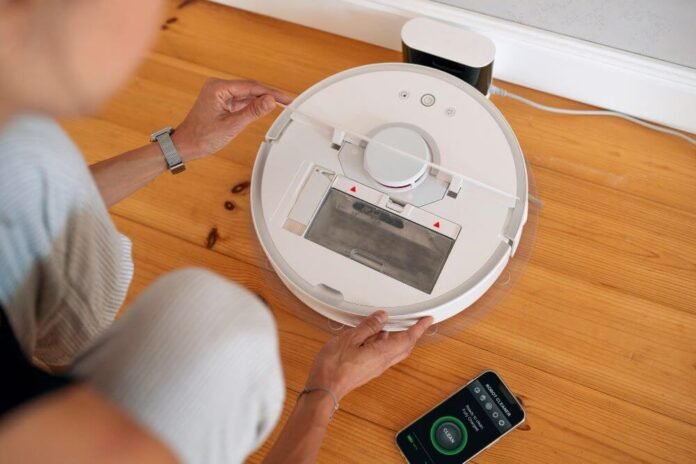
Empty the dustbin, clean the brushes, remove the battery if the maker says to, and pack the vacuum in its original box when you still have it. The battery is the part that needs the most thought.
iRobot’s Roomba owner’s manual advises charging the battery and then removing it from the robot before long-term storage or transportation. Other brands and newer models may work differently, and some batteries are not user-removable, so check your own manual before you start.
A loose lithium-ion battery is worth handling carefully. The Department of Transportation’s Lithium Battery Guide for Shippers explains that these batteries can overheat and ignite under conditions such as a short circuit, which is why shippers must keep terminals protected and batteries away from metal. That guide is written for commercial shipping, but the same idea works at home: cover exposed contacts with tape and keep the battery in its own small bag, away from keys and tools.
Here is a simple packing routine:
- Drain and dry any water tank and mop pads so nothing grows mildew in a closed box.
- Put side brushes, filters and mop pads in a labeled bag.
- Wrap the charging dock separately and coil its cord.
- Use the original box if you have it. If not, pick a sturdy box and fill gaps with crumpled paper so the robot cannot shift.
How to Pack Smart Speakers and Displays
Unlink the speaker, reset it if it is staying, wrap it in paper and box it with its power adapter. Smart displays need the same steps, with extra padding around the screen.
Speakers hold account links and Wi-Fi details, so do the reset before packing. Once a device is boxed, you will not want to open it again.
Wrap each unit separately in packing paper or a soft cloth. Keep the cord and adapter in a zip bag and tape the bag to the outside of the wrapped device, or place it on top inside the box. Set displays upright or face to face with cardboard in between, and never lay a heavy box on top of a screen.
How to Pack Cameras and Video Doorbells
Take cameras and doorbells off your account, clear any stored footage, and protect the lens and mounting parts. Treat them as small fragile electronics with a lot of loose pieces.
If a camera records to a microSD card, take the card with you or wipe it. Cancel or transfer any cloud subscription so the next resident does not inherit access to your footage, and so you are not paying for a camera you no longer own.
For a battery-powered doorbell or camera, remove the mounting plate and put the screws, anchors and any wedge kit in a labeled bag. For a hardwired doorbell, switch off the power at the breaker before you remove it, then cap the bare wire ends with tape so they cannot touch each other. Lenses scratch easily, so wrap each camera in a soft cloth before it goes into a box.
How to Remove and Pack a Smart Thermostat
Turn off power to your heating and cooling system at the breaker, photograph the wiring, label each wire, and then remove the thermostat. Skipping the photo is the most common mistake, and it makes reinstalling much harder.
Honeywell Home’s installation guide tells you to turn off power at the breaker box or switch for your system, and says a phone photo of the wiring plus wire labels is important before you disconnect anything. Some systems have separate heating and cooling breakers, so check both.
Once the wires are labeled, take off the faceplate and backplate. Put both in a small box with the screws, and print or save the wiring photo with it. Tape over the loose wire ends left in the wall so they stay put.
If the thermostat belongs to the home, you may owe the next owner a working one. A basic replacement is cheap. If you are not comfortable working with wires, ask an HVAC technician to do the removal, and ask the same person to put a simple thermostat in its place.
Keep Your Wi-Fi Router and a First-Day Box With You
Pack your router and modem last, carry them in your own vehicle and plan to set them up first. Nearly every smart device needs a working network before it can be set up again.
Make a first-day box for the items you will want within hours of arriving. A good one holds the router, its power cord, any hub, phone chargers, a few smart plugs and the printed wiring photo. Heat and rough handling are hard on electronics and batteries, so riding with you in the cabin beats sitting in a truck.
If you are changing internet providers, ask the old one how to return its equipment, and ask the new one when service starts. A router you cannot use on day one turns a tidy smart home into a pile of expensive boxes.
Box, Label and Decide What to Hand to Packers
Smart devices are small, which makes them easy to crack and easy to lose parts from. Use small, sturdy boxes, put each device and its cables together, and write the room, device name and “electronics” on the outside. One box per room keeps setup simple.
If time is tight, some households hand the fragile electronics to professional packers in NYC and keep the account steps for themselves. Packers cannot sign in to your apps, so unlinking and resetting should stay with you. NY Minute Movers is one example of a moving company whose packing service lists electronics among the fragile items its packers handle.
Set Up in the Right Order at the New Place
Plug in the router first and confirm the internet works. Then connect your hub, followed by one room at a time. Do not plug in all thirty devices at once, because it makes troubleshooting a guessing game.
Test each device before moving on, and rebuild automations last, once the devices they control are online.
Frequently Asked Questions
Do I need to factory reset smart devices before moving?
Reset anything that stays with the home, because it clears your accounts and data. For devices you take along, unlink them from the app and check the maker’s instructions. A reset is optional there, but it helps if your Wi-Fi name or password will change at the new place.
Should I keep the original boxes?
Yes, if you still have them. Original boxes and inserts fit each device and absorb knocks well. If you threw them out, use a sturdy box a little larger than the device, wrap it in paper, and fill empty space so it cannot slide around.
Can I take a smart thermostat from a rental?
Check your lease first. Some landlords treat thermostats and doorbells as part of the unit. If you are allowed to take one, photograph the wiring, label the wires and install a basic replacement so the next tenant has working heat and cooling.
How far ahead should I start packing smart devices?
Start about two weeks before moving day. That gives you time to make a device list, unlink each unit from its app, test resets while devices are still on your network, and find missing cables or boxes without the stress of a deadline.
Will my devices work on a new Wi-Fi network?
Yes. Most devices work after you reconnect them to the new network through their apps. Some need a reset first. Set up the router, test the connection, and add devices in small groups so you can spot any that need extra steps.
Ending the Move on a Working Network
A smart home move goes well when the digital steps come before the cardboard. Unlink and reset first, protect the batteries, label the wires, and keep the router in your own car.
On the last day, walk through each room once more and check that nothing with a plug or a battery was left on a shelf.